



A password manager stores your usernames and passwords in one encrypted place, so you only need to remember how to unlock that one place. Google Password Manager is the free version built into Chrome and Android, tied to your Google Account. It can create strong passwords for you, save them when you sign up, fill them in when you return, and warn you if a saved password appears in a known breach. It also stores passkeys, which let you sign in with your fingerprint, face, or screen lock instead of typing a password. For most people who already use Chrome and Android, that covers the basics well.
What Is Google Password Manager?
Google Password Manager is part of your Google Account, not a separate product you buy. You reach it through Chrome, through Android settings, or at passwords.google.com. Once you are signed in, the same list follows you across Chrome and Android.
The manager does four jobs:
- Saving: When you sign in to a site, Chrome or Android offers to save the username and password.
- Generating: When you create an account, it can suggest a strong, random password you do not have to invent.
- Autofilling: When you return, it fills the saved details, but only on the site or app they belong to.
- Checking: Password Checkup reviews saved passwords and flags ones that are compromised, reused, or weak.
Is Google Password Manager Safe?
Yes, Google Password Manager is safe for everyday use, provided you protect the Google Account behind it. Saved passwords and passkeys are stored with encryption, and Google says passkeys saved in the manager are always end-to-end encrypted, meaning the private key is only accessible on your own devices. Standard passwords get a different setup by default, and that difference is worth understanding.
By default, passwords are encrypted in transit and while stored, with access tied to your Google Account. That protects them from outsiders, but it is not the same model dedicated managers often describe as zero-knowledge, where the provider cannot decrypt your vault at all. Google offers a stronger option called on-device encryption, covered below.
Three habits decide most of your real risk:
- Turn on 2-Step Verification for your Google Account. If someone gets your Google password, that second step stops them reaching every saved login at once. Google itself recommends adding recovery info and turning on 2-Step Verification.
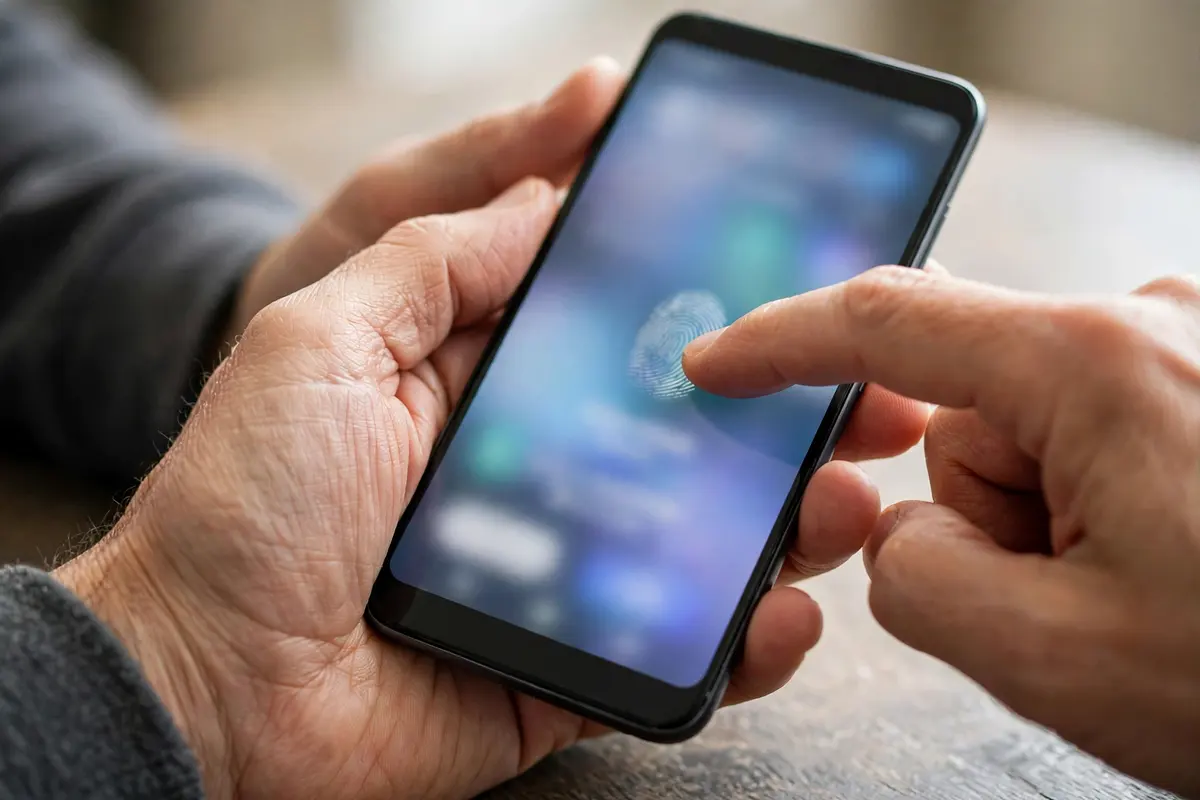
- Lock your devices. On Android, you confirm your identity with your screen lock, fingerprint, or face before viewing or using saved credentials and passkeys.
- Use autofill as a phishing check. The manager fills a password only on the matching site, so a lookalike site with a different address should not get the fill. You still need to spot those fakes, and our guide to common phishing email examples and how to spot them shows the tricks attackers reuse.
What On-Device Encryption Changes
On-device encryption is an optional setting on Chrome and Android. Your passwords are encrypted on your device before they sync, using your Google password or screen lock as the key. After that, only you can decrypt them on your devices, and Google cannot read them.
There is a trade-off. Guides based on Google’s setup flow note that once on-device encryption is set up, you cannot turn it off again. Also, if you forget your Google password and have no signed-in device left, you could lose access to your saved passwords. If you enable it, add a recovery email and phone number first, and keep at least one trusted device signed in.
Passkeys work differently. Google states that passkeys are always end-to-end encrypted, without you needing to switch on the option above. Creating or using a passkey also requires a screen lock.
Where Safety Has Limits
A password manager cannot fix a compromised device. If malware is already running on your phone or computer, it can interfere with whatever you type, copy, or approve, whether you use passwords or passkeys. Passkeys reduce phishing and credential theft, but they are not malware protection.
Sharing is another limit. It does not offer shared family vaults, emergency access, or separate work and personal vaults that many paid managers provide. Never share your Google password just to share one login.
How to Use Google Password Manager
On a Computer in Chrome
- Open Chrome and sign in with your Google Account.
- Select the three-dot menu, then Passwords and autofill, then Google Password Manager. On the web, you can also go straight to passwords.google.com.
- In settings, check that the offer to save passwords is on.
- Sign in to a site and accept Chrome’s offer to save. For a new account, accept the strong password Chrome suggests instead of typing your usual one.
- Next time you visit, Chrome should offer the saved login. Check it is the right account before you approve the fill.
To view, edit, or delete an entry later, open the manager, select the site, and authenticate when asked.
On Android
- Make sure you are signed in to your Google Account on the phone.
- Set Google as your autofill provider if Android asks. Without that step, apps may not offer your saved logins.
- Open Settings and search for Password Manager, open the Google Password Manager app if present, or use Chrome under Settings, then Google Password Manager.
- Tap the username field and pick the saved account, or tap the key icon above the keyboard to use a suggested strong password for a new account.
- Confirm with your screen lock or fingerprint when asked.
On iPhone and iPad
It works on iOS, but with more friction. You access it through Chrome on iOS, and to autofill in other apps you need to set Chrome as your autofill provider in iOS settings, so Google-stored passwords appear in the keyboard suggestions.
Passkey support has a condition too. Chrome on iOS and iPadOS 17 and newer can create and sync passkeys in Google Password Manager. On older versions, passkeys created on Apple devices tended to stay in Apple’s own password storage and did not sync the same way. In Safari and other non-Chrome browsers, do not expect the same autofill behaviour you get on Android.
How to Check for Compromised Passwords

Password Checkup is the feature to run first if you have saved passwords for years and never reviewed them. In Chrome, open Google Password Manager and select Checkup. On the web, go to passwords.google.com, choose Go to Password Checkup, then Check passwords, and sign in again if asked.
Work through the results in this order:
- Compromised first. These passwords have appeared in a known breach or been published online. Change them the same day, starting with email, banking, and accounts tied to money. A warning does not prove someone has already used the password, but it is now in lists attackers test against other sites.
- Reused second. The same password on several accounts means one leak opens all of them. Give each account its own generated password.
- Weak last. Short or guessable passwords should be replaced with a long generated one as you next sign in to each site.
Checkup can only review passwords saved in Google Password Manager, so save logins as you fix them.
Passkeys: The Part Worth Using Now
A passkey replaces a typed password with a cryptographic key pair. The site holds a public key, and your device holds the private key, which never leaves your manager in usable form. You approve sign-in with your fingerprint, face, or screen lock.
Passkeys help in two clear ways. They are unique to the site they were created for, so a fake copy of the site cannot collect a reusable secret from you. Also, there is nothing to type, reuse, or forget.
To create one, sign in to a site that offers passkeys, open its account or security settings, and look for Create a passkey. Choose Google Password Manager if the browser asks where to save it, then confirm with your screen lock. Not every site offers passkeys yet, and you cannot create one for a site that does not support them.
On a computer or iOS device, your first passkey may also create a Google Password Manager PIN, which helps you use passkeys on a new device. On Android, your screen lock does that job instead. Start with your most important accounts, especially email.
How to Export or Move Your Passwords
Passwords can be exported through Chrome, usually as a CSV file, and imported into another manager. Treat that file with care. A CSV export is readable text, so anyone who opens it sees every password. Export only on a device you trust, move the file straight into the new manager, then delete the file and empty the trash. Do not email it to yourself or leave it in your downloads folder.
Passkeys do not move in the same file-based way, and historically they could not be exported at all. Google has recently begun rolling out a direct Android transfer flow between supported managers without a downloaded file, but availability varies by app and device.
When a Dedicated Password Manager Makes More Sense
Google Password Manager fits well if you mostly use Chrome, live on Android, and want basic saving, generating, autofill, and breach checks for free. Consider a standalone manager if you switch between Safari, Firefox, and Chrome and want the same experience in each one, if you need to share logins safely with family or a team, or if you need separate work and personal vaults. Businesses that need admin controls and support will also outgrow a personal Google Account tool quickly.
Prices and plans for paid managers change often, so compare options on cross-platform apps, sharing controls, and what happens if you lose your master password. Whichever manager you pick, the habits stay the same: unique passwords everywhere, and 2-Step Verification or passkeys on main accounts.
Catching up on home basics too? Our Home guide explains what drain tile is and how a footing drain keeps a basement dry.
Frequently Asked Questions
Is Google Password Manager free?
Yes. It is included with a Google Account and works through Chrome and Android at no extra charge. You do not need a paid Google plan to save passwords, use autofill, run Password Checkup, or store passkeys.
Where are my passwords actually stored?
Passwords you save are stored in your Google Account, which is why they sync between Chrome and Android when you are signed in. You can manage the list at passwords.google.com, in Chrome’s password settings, or through Android settings.
Can someone see my passwords if they borrow my phone?
They should not be able to view a saved password without passing your screen lock, fingerprint, or face check. That protection disappears if your phone has no screen lock, or if you hand it over already unlocked.
What happens if I lose access to my Google Account?
You could lose access to every password and passkey until you recover the account, so add a recovery email and phone number now, while you can still sign in. With on-device encryption, a lost password and no signed-in device left can mean the saved passwords cannot be decrypted at all.
Can I use Google Password Manager in Firefox or Safari?
Not with the same built-in autofill you get in Chrome. You can still open passwords.google.com in another browser to look up a login and type it manually, but saving and autofilling are centred on Chrome and Android.
Should I delete my passwords from Chrome after setting up passkeys?
No, not straight away. Keep the saved password until you have signed in with the passkey on every device you use and confirmed the site’s recovery options still work. Some sites also keep the password as a backup sign-in method even after you add a passkey.
