


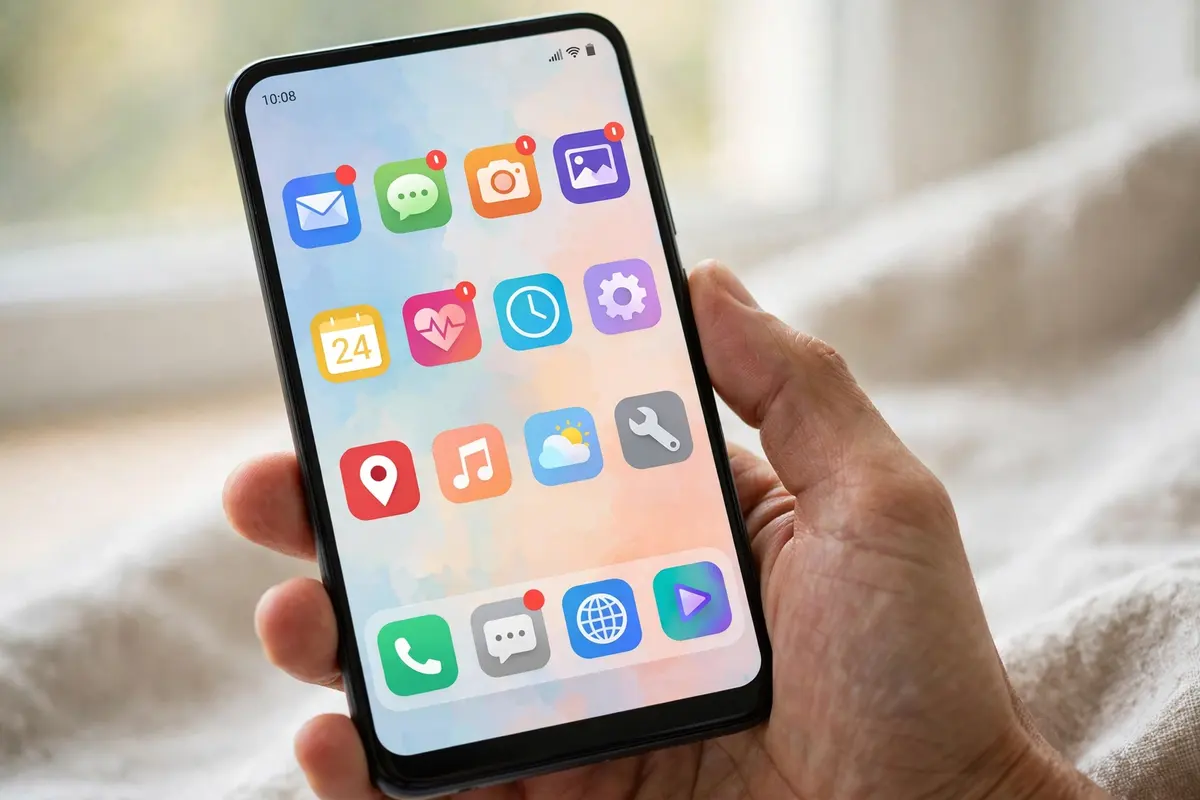
Those blue dots on phone screen icons are notification markers, and the short answer is reassuring: nothing is wrong with your phone. A dot sitting on an app icon means that app has a notification you have not opened yet. The catch is that Android uses a similar blue dot in several other places, and each one means something different. Next to a contact in Messages, it means that person can use RCS chat features. In Google Maps, the blue dot is your own location on the map. Inside Messenger, it marks a conversation you have not read. This guide explains each version, why it shows up, and how to switch off the ones you do not want.
What Do Blue Dots on Phone Screen App Icons Mean?
The dot on an app icon is called a notification dot. Google built the feature into Android 8.0 Oreo in 2017, and it has been standard ever since. When an app posts a notification, a small dot appears in the corner of the app’s icon, both on your home screen and in the app drawer. It works as a quiet reminder that something is waiting for you, without a number counting up beside it.
Despite the name of this article, the dot is not always blue. Android draws the dot’s colour from the app’s own icon, so a blue-heavy icon tends to produce a blue dot. Themes can shift the colour as well, which is why the same feature looks slightly different from one phone to the next.
The dot is interactive, too. Long-press an icon that carries a dot and Android pops up a preview of the pending notification alongside the app’s shortcuts. You can deal with the alert right there, or swipe it away in the notification shade. Once the notification is gone, the dot disappears on its own.
Samsung takes a different default approach. Galaxy phones call these markers app icon badges, and out of the box they show a small circle with a number inside, telling you how many notifications are waiting. You can change that numbered badge to a plain dot, which the steps below cover.
How Do You Turn Off the Android Notification Dot?
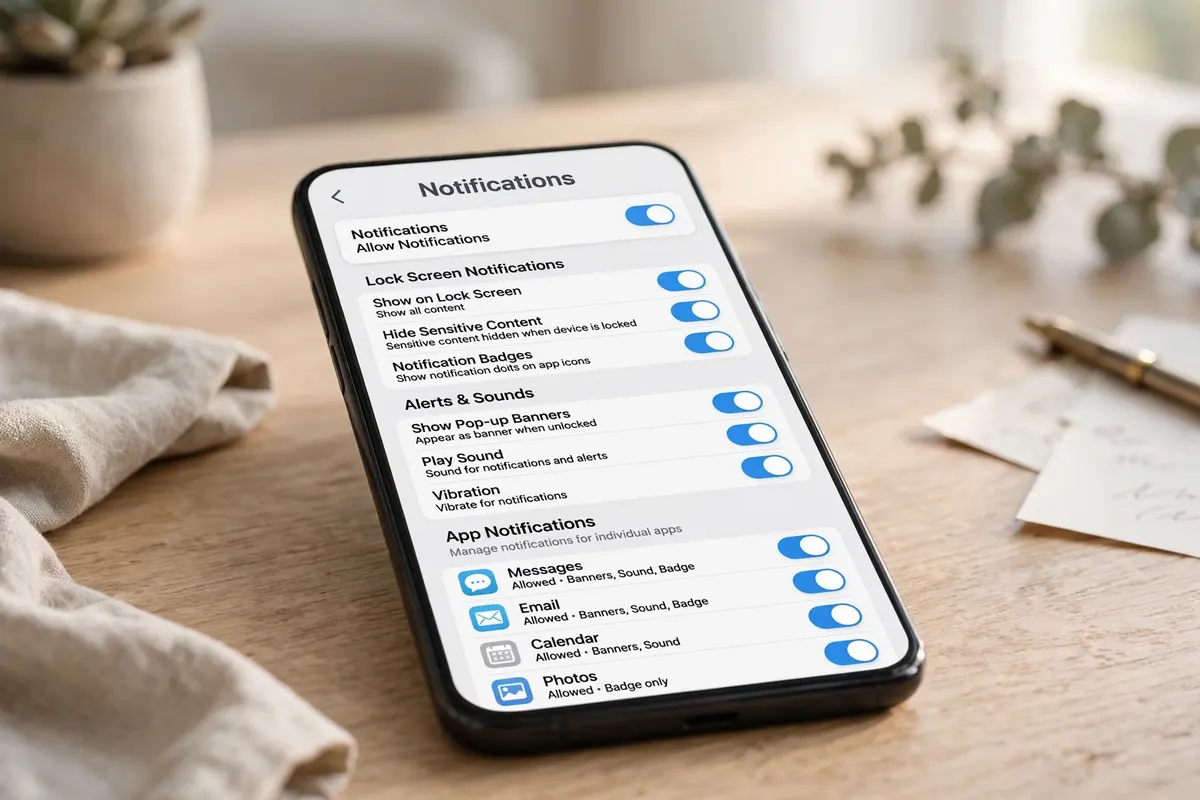
Turning dots off never blocks the notifications themselves. Your alerts still arrive and still wait in the notification shade; the phone simply stops marking the icons. Here is where the switch lives on the two most common setups.
On a Samsung Galaxy Phone
- Open Settings and tap Notifications.
- Tap App icon badges. On some One UI versions this sits inside Advanced settings.
- Switch it off to remove badges from every app at once.
While you are on that screen, notice the Show without number option. Picking it swaps Samsung’s numbered badge for a plain dot, which many people find less pushy.
On a Pixel or Other Stock Android Phone
- Open Settings and tap Notifications.
- Turn off Notification dot on app icon.
There is a shortcut on Pixel phones, too. Long-press an empty patch of the home screen, tap Home settings, then open Notification dots and flip the same switch there.
Other brands bury the setting in slightly different menus. The fastest route is usually to open Settings and search for “badge” or “notification dot”, which jumps straight to the right page. On Huawei phones, for example, you pinch the home screen, tap More settings, and then Badge app icons.
How Do You Remove the Dot From One App Only?
You do not have to choose between every dot and no dots at all. Android lets you keep badges on the apps that matter, such as Messages, Phone, and your email, while stripping them from games and shopping apps that ping you all day.
- Samsung: Open Settings, tap Notifications, pick the app, and turn off Badge for that app.
- Pixel and stock Android: Touch and hold the app’s icon, tap App info, tap Notifications, and turn off Allow notification dot.
Changes apply right away, and you can repeat the process for as many apps as you like.
Why Is There a Blue Dot Next to a Contact in Messages?
This is the dot that confuses people most, because it refuses to behave like the icon dot. Reading the message does not clear it, and it can sit next to the same names for months.
In Samsung Messages, a blue dot beside a contact means that person can exchange RCS chat messages with you. Google Messages marks the same thing with a small blue chat bubble icon, and many newer Galaxy phones now ship with Google Messages as the default, so you may see either symbol. The meaning is identical either way: that conversation can run over chat features instead of plain SMS.
Three things have to line up before the dot appears. Chat features must be switched on in your Messages app, the other person’s phone and carrier must support RCS, and the conversation needs a Wi-Fi or mobile data connection. When all three are in place, you get typing indicators, read receipts, and noticeably better photo and video quality. Google Messages also encrypts one-to-one RCS chats end to end. If any piece is missing, the conversation falls back to SMS or MMS and no dot shows.
That is the key point: this dot was never an unread marker. It is a capability marker. As long as your contact stays reachable over RCS, the dot stays put.
How Do You Remove the Blue Dot in Messages?
The only way to remove it is to turn chat features off entirely. Open Messages, tap your profile picture (older versions use the three-dot menu), tap Settings, then Chat features — newer versions of Google Messages label this RCS chats — and switch off Enable chat features.
Be clear about the trade before you do it. The dots vanish from every contact, but so do typing indicators, read receipts, and the higher-quality media sharing, because all of your texts drop back to SMS. Once most people learn the dot simply means “this contact has the upgraded chat”, they decide to leave it alone.
What Does the Blue Dot Mean in Messenger, WhatsApp, and Snapchat?
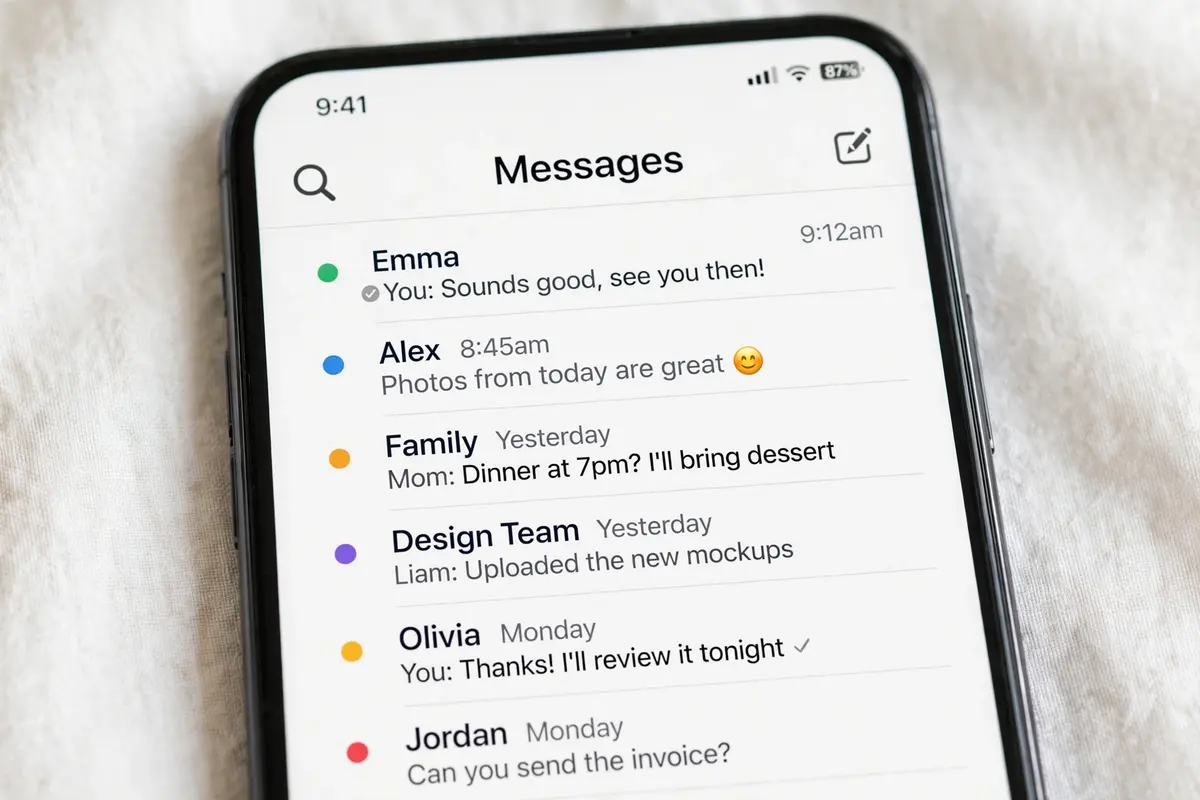
Inside Messenger, a blue dot to the right of a conversation means you have an unread message in that chat. The sender does not get a read confirmation until you actually open it, and opening the chat clears the dot. The same dot also flags message requests you have not opened yet. Keep it separate in your mind from the green dot on a profile picture, which only shows that the person is active right now.
WhatsApp causes a common mix-up. There is no blue dot system inside the chat list itself. The dot people spot sits on the WhatsApp icon on the home screen, and that is your phone’s notification badge doing its job, not a WhatsApp setting. You control it with the phone-level badge steps earlier in this guide, by switching the badge off for WhatsApp alone if you prefer. Inside WhatsApp, the nearest control is muting: open a noisy chat or group, tap the menu, and mute its notifications so it stops feeding the badge in the first place.
Snapchat gives its blue dot a third meaning. Inside a chat, a small blue dot tells you your friend is in that conversation with you at this moment. It changes into a smiley face when they start typing a reply or look at your snap, and it disappears once they leave the chat. It is a presence indicator, nothing more.
What Does the Blue Dot in Google Maps Mean?
The Maps dot has nothing to do with notifications. It marks your own position on the map. The pale blue circle surrounding it is the margin of error: you could be anywhere inside that circle, and the smaller the circle, the more confident Maps is about where you stand. If the dot turns grey or goes missing, Maps cannot pin down your current location and falls back to the last place it recorded.
Location sharing is where this dot gets misread. Tap the blue dot and choose Share location, and the people you pick can follow your real-time position on their own map. Here is the part worth remembering: on their screen, you appear as your profile picture moving across the map, not as a blue dot. Nobody else ever shows up as a blue dot on your phone. The blue dot is always you, and only on your own device.
What Does a Blue Dot at the Top of the Screen Mean?
Since Android 12, phones have shown a green dot near the top of the screen when an app is using the camera or microphone. A blue neighbour is now joining it on newer phones. Google has begun rolling out a blue status dot that appears while an app is actively using your location, starting with Pixel phones through an Android 16 update, with wider availability expected in the following Android release. Tapping the dot reveals which app is using your location at that moment.
That makes the dot genuinely useful rather than decorative. If it appears and you do not recognise the app behind it, you can pull the permission back. On a Pixel, head to Settings, then Security and privacy, then Privacy controls, then Permission manager, then Location, and remove access for that app. On a Samsung, the matching list lives under Settings, then Security and privacy, then Permission usage.
Related reading: Check our 30 Seconds Outdoor Cleaner guide, see phishing email examples that still fool people, and learn what Felful.com is.
Frequently Asked Questions
Is a blue dot on my phone a virus or a sign that someone is tracking me?
No. Every blue dot covered in this guide is a standard Android or app feature, and none of them is installed by malware. The status bar dot actually works in your favour: it exists to expose location, camera, and microphone use while it happens, and the permission screens above let you cut off any app you do not trust.
Why won’t the blue dot next to a contact go away after I read the message?
Because that particular dot has nothing to do with unread messages. It marks the contact as able to use RCS chat features, so it stays as long as chat features are on and the contact’s phone supports them. The only way to clear it is switching chat features off in Messages settings, which also removes read receipts and typing indicators.
Does turning off notification dots stop my notifications?
No. Your notifications still arrive, still appear when you swipe down from the top of the screen, and still show on the lock screen. You only lose the marker on the icon. If one app’s alerts genuinely bother you, the better fix is turning off that app’s notifications in the same settings menu, which stops the alerts rather than just hiding their badge.
Why is the dot on my phone orange, red, or another colour?
The icon dot borrows its colour from the app’s icon and from your system theme, so it is not fixed to blue. Samsung’s numbered badges also use their own default colour scheme. If you want the plainer look, open App icon badges in Samsung’s notification settings and choose Show without number to swap the numbered badge for a simple dot.
Why does one app keep its dot even after I have checked it?
There is almost always a live notification from that app still sitting in your notification shade. An ongoing download, a playing podcast, or a delivery making its way to you keeps a notification active, and the dot simply mirrors it. Swipe down, clear the shade, and the dot goes with the notifications.
