


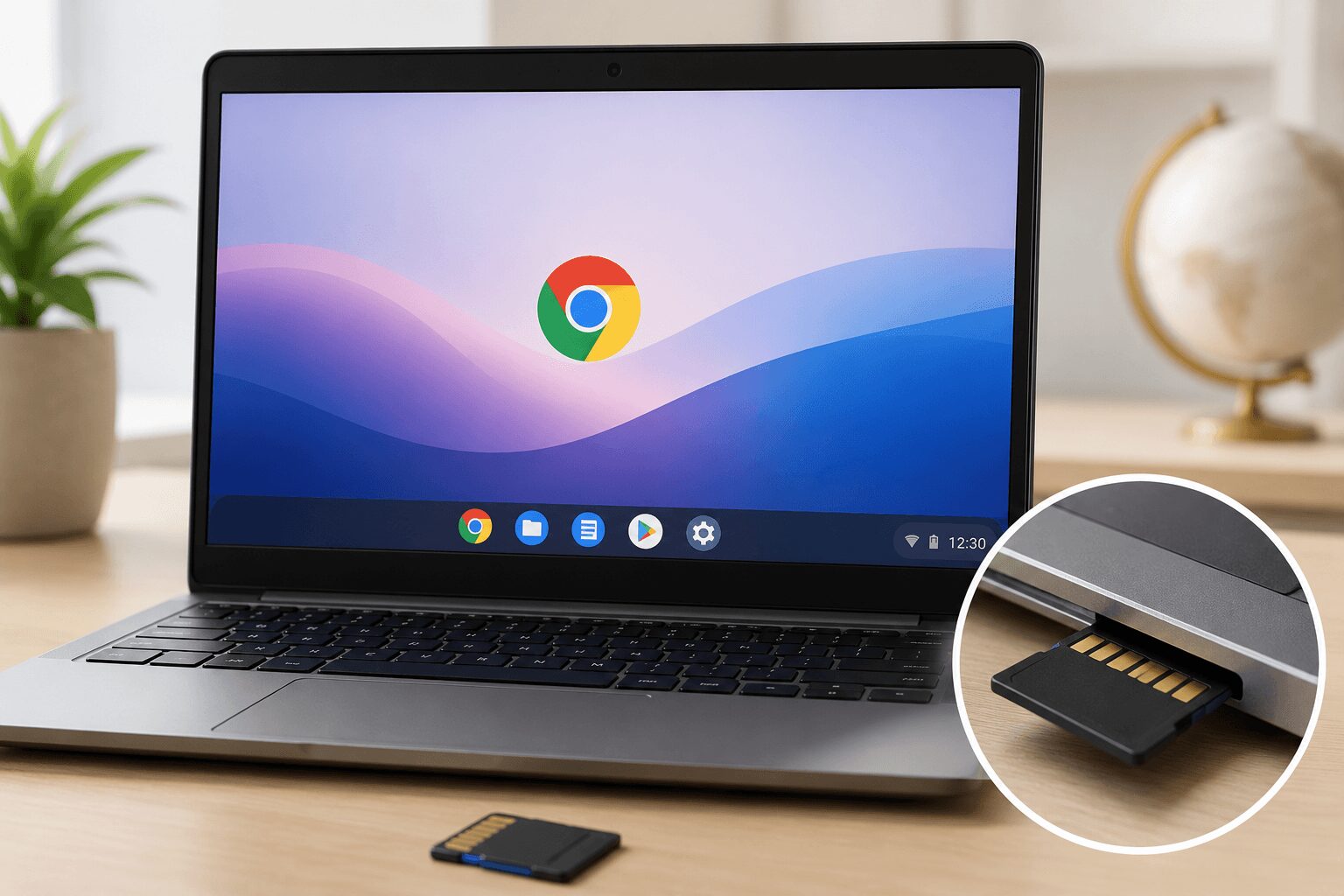
Yes, Chrome OS Flex works with SD cards on most computers that have a built-in SD card reader. Once you insert the card, it mounts automatically and shows up in the Files app, where you can open, move, and save files just like you would with a USB drive. Whether it works smoothly on your specific machine depends on how well Chrome OS Flex’s Linux-based drivers support your reader’s hardware.
Quick Answer at a Glance
Before going deeper, here’s a simple breakdown of what typically works and what doesn’t.
| Use Case | Does It Work on Chrome OS Flex? |
|---|---|
| Reading files from an SD card | Yes, on supported readers |
| Saving files to an SD card | Yes, on supported readers |
| Using an SD card as extra Android app storage | No, Android apps are not supported |
| Booting or installing Chrome OS Flex from an SD card | Not recommended; USB is the standard method |
| Formatting the SD card from within Chrome OS Flex | Yes, using the Files app |
Chrome OS Flex SD Card: What You Need Before You Start
You do not need to install anything extra to use an SD card with Chrome OS Flex. The drivers are already part of the system, and the Files app handles the rest. Before you begin, make sure you have the following.
- A computer with Chrome OS Flex installed, plus either a built-in SD card slot or a USB SD card reader
- An SD, SDHC, or SDXC card in good working condition
- A backup of anything important already on the card, since some fixes involve reformatting
- A full-size SD adapter if your card is microSD and your reader only accepts full-size cards
How Chrome OS Flex Handles SD Card Readers
Chrome OS Flex is built on the Chromium OS project, and it uses standard Linux kernel drivers to talk to your computer’s hardware. When your laptop or desktop has a built-in SD card slot, Chrome OS Flex usually detects it the same way it detects a USB port.
This means the experience is largely plug-and-play. You insert the card, a notification appears, and the card becomes available as a storage location inside the Files app.
Built-In Readers vs. USB Adapters
Built-in SD card slots tend to work more reliably than external USB card readers or adapters. That’s because internal readers are more commonly included in the hardware compatibility testing that goes into Chromium OS driver support.
External USB SD card adapters can still work, but results vary by brand and chipset. No official master list of supported reader chipsets is published, so if one adapter is not recognized, trying a different brand or a different USB port is the quickest way to rule out a hardware mismatch.
Why Some SD Cards Do Not Work
Not every SD card issue is caused by Chrome OS Flex itself. Several common problems come from the card or the computer, not the operating system.
Many people believe that if an SD card works on Windows or macOS, it will automatically work the same way on Chrome OS Flex. In reality, that’s not always true, because driver support depends on your computer’s specific card reader chip, not just the SD card format.
Formatting Requirements
Chrome OS Flex reads SD cards formatted in common file systems like FAT32 and exFAT without any extra setup. Cards formatted in less common or proprietary file systems may not mount correctly.
If your card isn’t showing up, reformatting it to exFAT from within the Files app is usually the fastest fix.
How to Format an SD Card on Chrome OS Flex
If your card uses an unsupported file system, or you just want a clean start, you can format it without leaving Chrome OS Flex. Formatting erases everything on the card, so copy any files you want to keep somewhere safe first.
- Insert the SD card into the reader and open the Files app.
- Find the card’s name in the left sidebar under Storage devices.
- Right-click the card’s name, or select it and open the three-dot menu, then choose Format device.
- Pick a file system from the options shown. exFAT is the safest all-around choice for most cards.
- Give the card a name if you like, then confirm.
A Common Myth: SD Cards and Android Apps
A lot of people assume Chrome OS Flex works exactly like regular ChromeOS on a Chromebook, including using an SD card to expand storage for Android apps. In reality, that’s incorrect, because Chrome OS Flex does not support the Google Play Store or Android apps at all.
That means an SD card on Chrome OS Flex is useful for general file storage, transferring documents, or backing up photos, but not for expanding app installation space the way it can on some Android-enabled Chromebooks.
Checking If Your Chrome OS Flex SD Card Is Recognized
If you’re not sure whether your SD card is working properly, a quick check can confirm it.
- Insert the SD card into the reader.
- Open the Files app from your shelf or app launcher.
- Look for the card’s name under the “Storage devices” section on the left sidebar.
- If it doesn’t appear, try a different card or a different USB port if you’re using an adapter.
If the card still doesn’t appear after these steps, the issue is more likely related to the specific hardware reader on your machine than to Chrome OS Flex itself.
Using an SD Card for Extra Storage
Since Chrome OS Flex is often installed on older laptops with limited internal storage, an SD card can genuinely help extend your available space. You can save downloaded files, offline documents, and media directly to the card instead of the device’s internal drive.
This is especially useful if you’re repurposing an older Windows laptop that originally had a small hard drive, where every gigabyte of internal space counts.
Moving Files Between Internal Storage and SD Card
You can drag and drop files between internal storage and the SD card directly inside the Files app. There’s no special software required for basic file transfers.
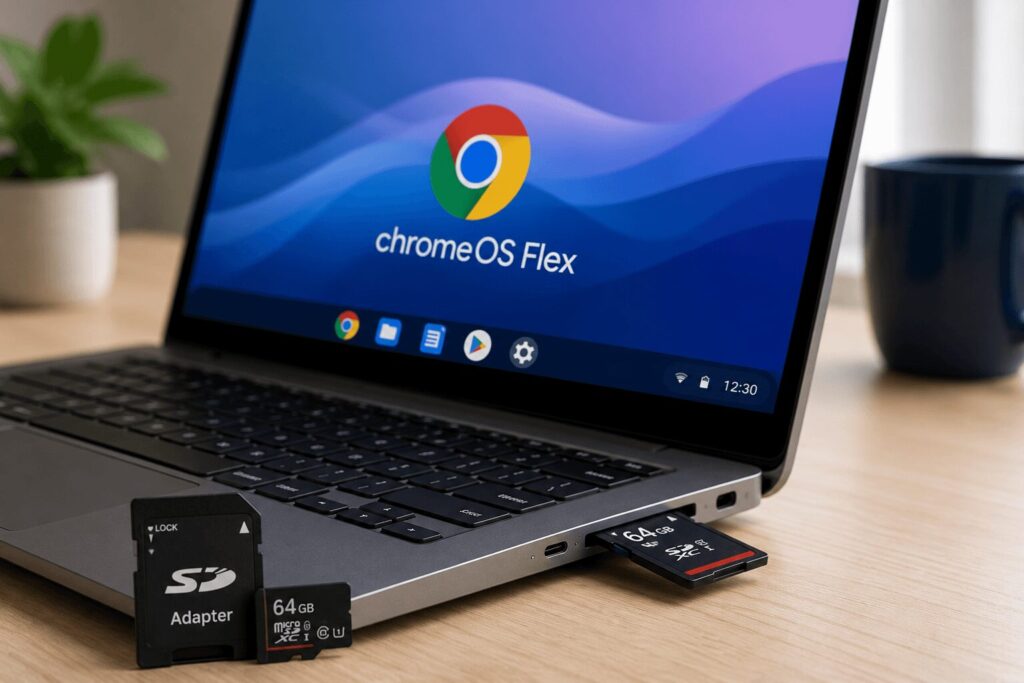
For larger transfers, it’s worth keeping the laptop plugged in, since older SD card readers can be slower than newer ones.
Setting Your SD Card as the Default Download Location
If you want new downloads to land on the SD card automatically instead of internal storage, you can change the default location in Settings.
- Open Settings from the app launcher or the system tray.
- Go to Advanced, then Downloads.
- Next to Location, select Change and pick your SD card from the list.
New downloads will save there until you change it back. This is handy on machines with small internal drives. Menu labels can vary slightly between Chrome OS Flex versions, but the Downloads section is where the option lives.
Practical Considerations
A few practical factors affect how well an SD card performs on Chrome OS Flex day to day.
Older laptops repurposed with Chrome OS Flex sometimes have SD card readers that use outdated controllers. These can still work, but transfer speeds may be noticeably slower than what you’d expect from a modern reader.
It’s also worth checking Google’s certified models list for Chrome OS Flex before relying heavily on an SD card slot for daily use, since hardware compatibility is confirmed there for many popular devices.
Tips for Best Performance
A little maintenance goes a long way toward keeping SD card use smooth and reliable on Chrome OS Flex.
- Use a card formatted in exFAT for the widest compatibility.
- Avoid removing the card while a file transfer is still in progress.
- Periodically eject the card safely through the Files app rather than pulling it out directly.
- If speeds seem slow, try the card in a different USB port or reader to rule out a hardware issue.
How to Safely Eject an SD Card
Pulling a card out in the middle of a write can corrupt files or damage the file system. Ejecting first takes a few seconds and avoids that risk entirely.
- Open the Files app.
- Find the card under Storage devices in the left sidebar.
- Click the eject icon next to the card’s name.
- Wait until the card disappears from the sidebar, then remove it.
Common SD Card Reader Issues After Installing Chrome OS Flex
Since Chrome OS Flex is frequently installed over an existing Windows or macOS setup, some hardware that worked before installation can behave differently afterward. This isn’t usually a sign that the card itself is damaged.
In many cases, the reader simply needs a driver that Linux handles differently than Windows did. Restarting the device after inserting the card, or trying the card in a different slot if your machine has more than one, often resolves intermittent detection issues.
When the Reader Isn’t Detected at All
If the SD card reader doesn’t appear anywhere in the Files app, even after trying a different card, the reader’s controller chip may not be supported by the drivers Chrome OS Flex includes. This is more common on older or budget laptops with less common internal components.
In that case, checking Google’s certified models list can tell you whether your exact laptop model has confirmed SD card support before you spend more time troubleshooting.
When the Card Is Detected but Misbehaves
Sometimes the card shows up in the Files app but still causes trouble. These are the most common cases and what to do about each.
You can read files but cannot save new ones. Check the physical write-protect switch on the side of a full-size SD card or adapter. If it is slid to the locked position, the card becomes read-only. Slide it back and reinsert the card. A completely full card behaves the same way, so check available space too.
Transfers start but never finish, or speeds are very slow. Older built-in readers and low speed-rated cards are the usual cause. For large video files, a card with a higher speed rating makes a noticeable difference. If the reader itself is the bottleneck, a modern USB adapter on another port often performs better.
The card worked yesterday but not today. Remove the card, restart the laptop, and reinsert it after the system has fully booted. Temporary driver hiccups after sleep or an update usually clear with a restart.
Alternative Storage Options on Chrome OS Flex
If your built-in SD card reader isn’t cooperating, there are still several practical ways to add storage to a Chrome OS Flex device.
- A USB flash drive plugged directly into a USB port, which tends to have the most consistent driver support.
- An external USB hard drive or SSD for larger storage needs.
- Cloud storage services accessed through the browser, which don’t rely on any local hardware at all.
- A USB-C hub with a card reader built in, if your laptop only has USB-C ports.
These options are worth keeping in mind if you’re setting up an older laptop and aren’t sure yet whether its internal card reader will be fully supported.
Does Chrome OS Flex SD card work on all laptops? It works on most laptops with a built-in SD card reader, but support depends on your device’s specific hardware and drivers.
Can I install Chrome OS Flex from an SD card? USB drives are the standard and recommended installation method. Using an SD card for installation is not the typical supported approach.
Why isn’t my SD card showing up in the Files app? This is usually caused by an unsupported file format or a card reader issue rather than a problem with Chrome OS Flex itself. Reformatting the card to exFAT often resolves it.
Can I use an SD card to store Android app data on Chrome OS Flex? No, because Chrome OS Flex doesn’t support Android apps or the Google Play Store, so this use case doesn’t apply.
Do external USB SD card readers work with Chrome OS Flex? Many do, though reliability varies by brand and chipset. The troubleshooting steps above walk through what to try if your specific reader isn’t recognized.
Can I leave the SD card in the slot all the time? Yes. The card stays mounted and works like a small permanent drive. Just eject it through the Files app before you physically remove it, and avoid pulling it out while the laptop is asleep.
Why does my card work on Windows but not on Chrome OS Flex? Windows and Chrome OS Flex use different drivers for the same card reader hardware. A reader chip with solid Windows support can still have weak Linux driver support, which is what Chrome OS Flex relies on. Trying a USB adapter is the fastest workaround.
Takeaway
Chrome OS Flex SD card support works reliably for everyday file storage and transfers on most laptops with a built-in reader. It won’t help with Android app storage, since that feature isn’t available on Chrome OS Flex at all. If a card isn’t detected, reformatting it to exFAT and working through the troubleshooting steps above is the fastest path to a fix.
